How to use Talkoly
A short video and 8 simple steps. No technical words — easy to follow even if you’ve never set up a website.
A 1-minute video: signing up, adding the code to your site, a customer’s first message and your reply. No sound needed — everything is captioned.
The video and screenshots on this page show the Ukrainian interface: the dashboard is currently available in Ukrainian only.
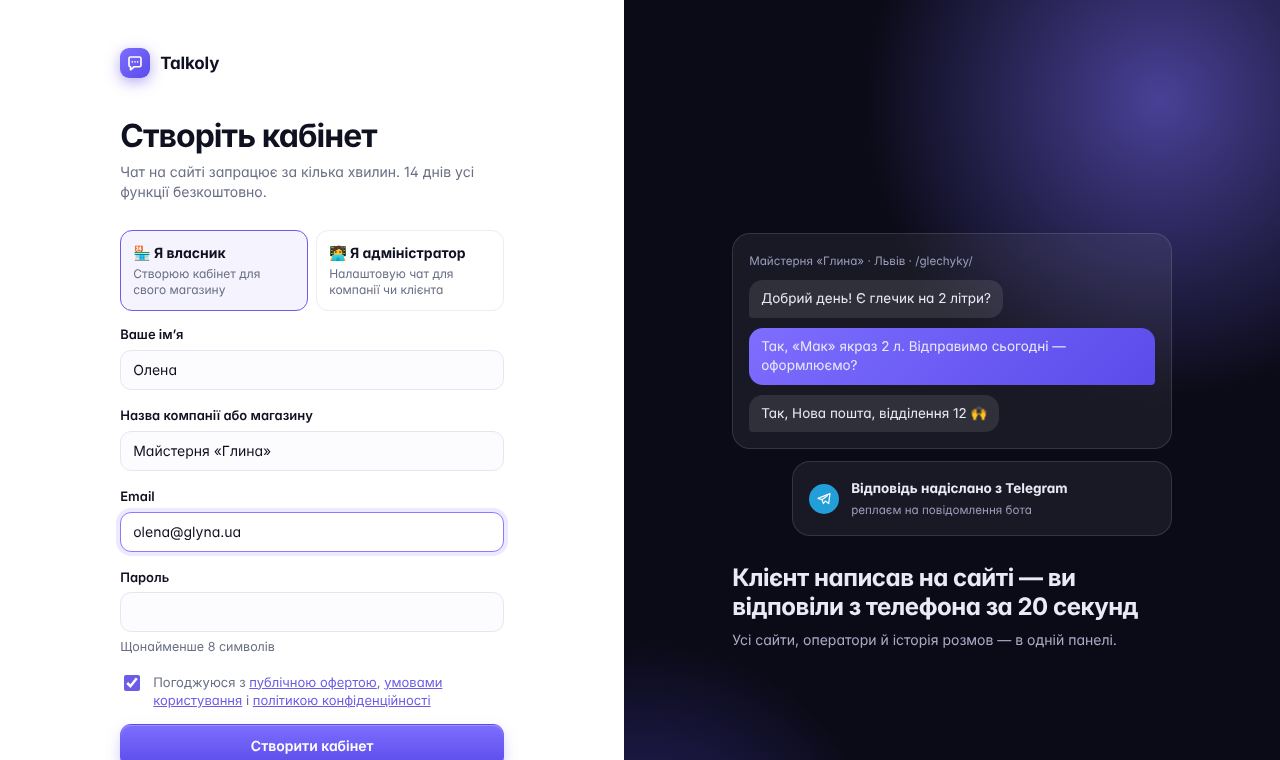
Sign up
Click “Try for free”. Enter your name, store name, email and password. Or sign in with Google in one click.
- No card needed.
- All features work for 14 days.
- After that, your account switches to the free plan on its own — nothing disappears.
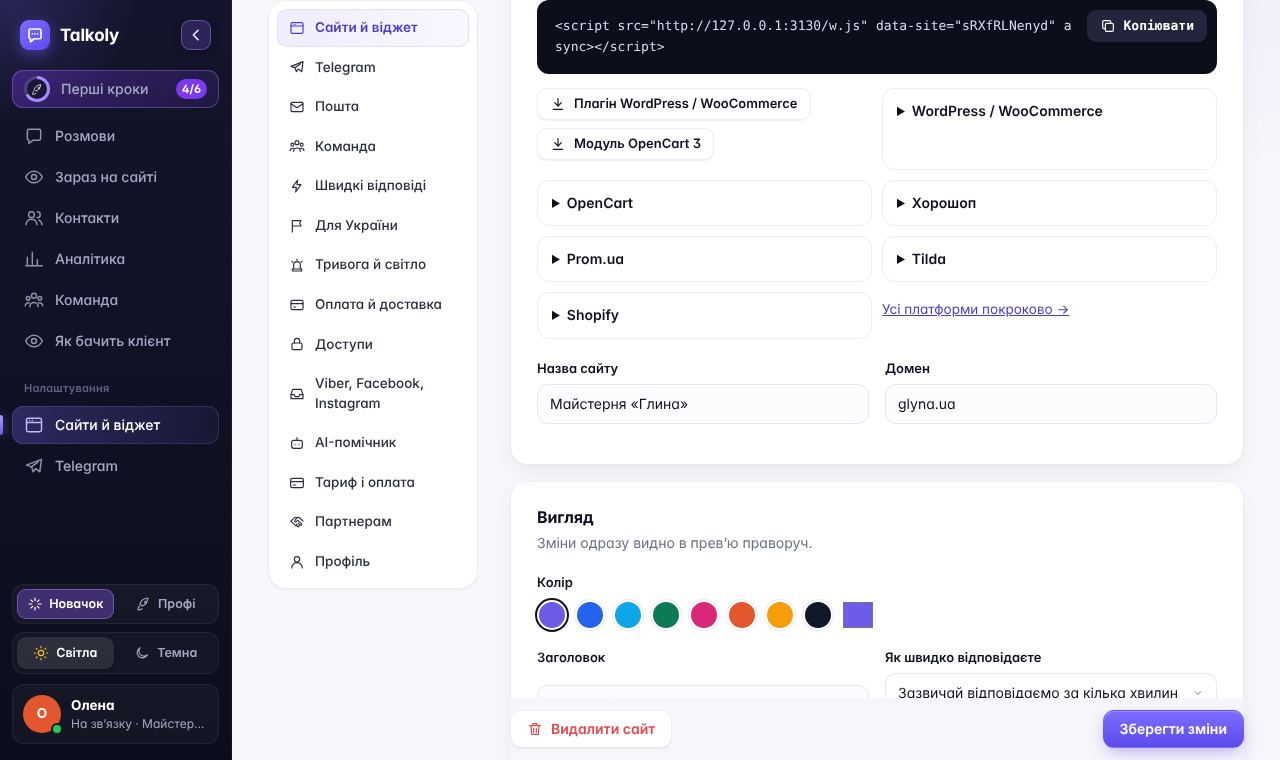
Add the chat to your website
Add your website: its name and address. Then copy one line of code and paste it on your website — it’s like pasting a link.
- WordPress or OpenCart — download the ready-made plugin, the code is already inside.
- Horoshop, Prom, Tilda — step-by-step guides are right below the code.
- Click “Check installation” — we’ll tell you if everything is fine.
Not working? Message us in the chat — we’ll help. In detail: how to install on different platforms.
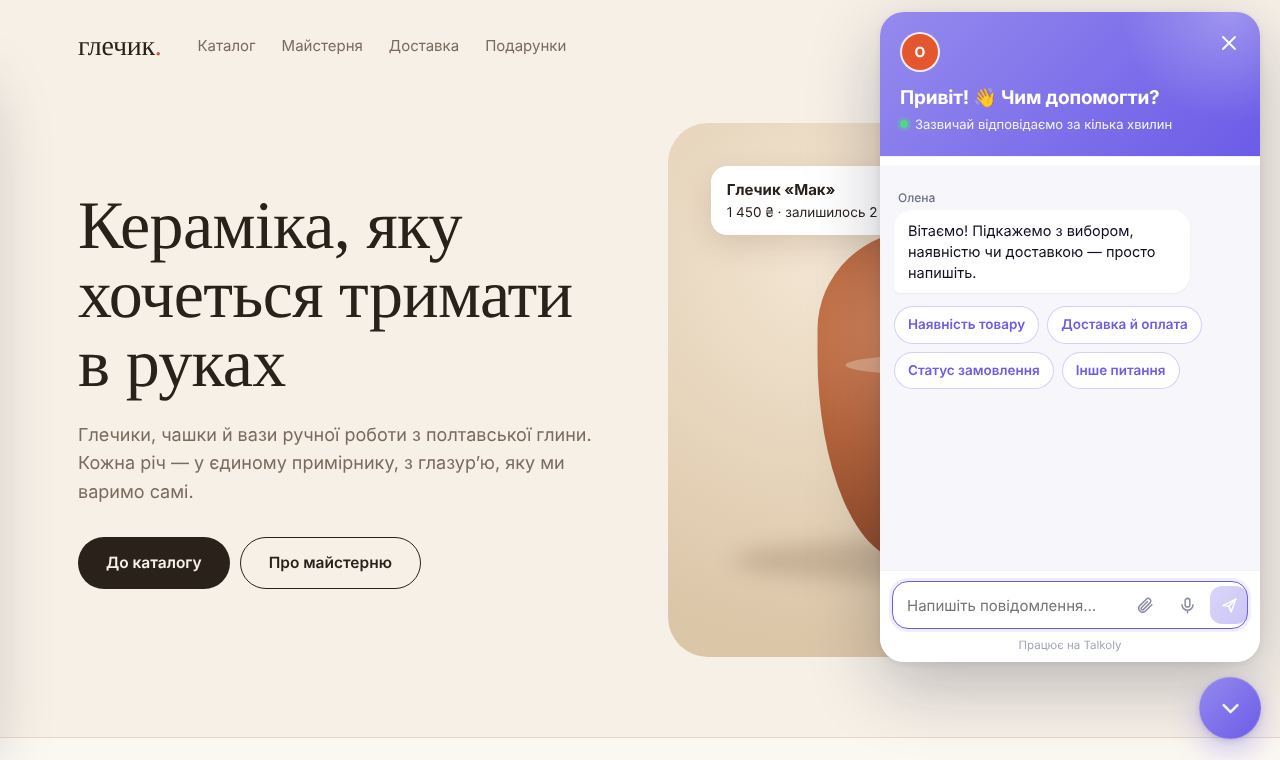
A customer writes to you on your site
A round chat button appears on your website. A shopper taps it and types a question — no sign-up and no phone call.
You can change the color, greeting and buttons with popular questions (“Delivery”, “In stock?”) in “Settings → Websites and widget”.
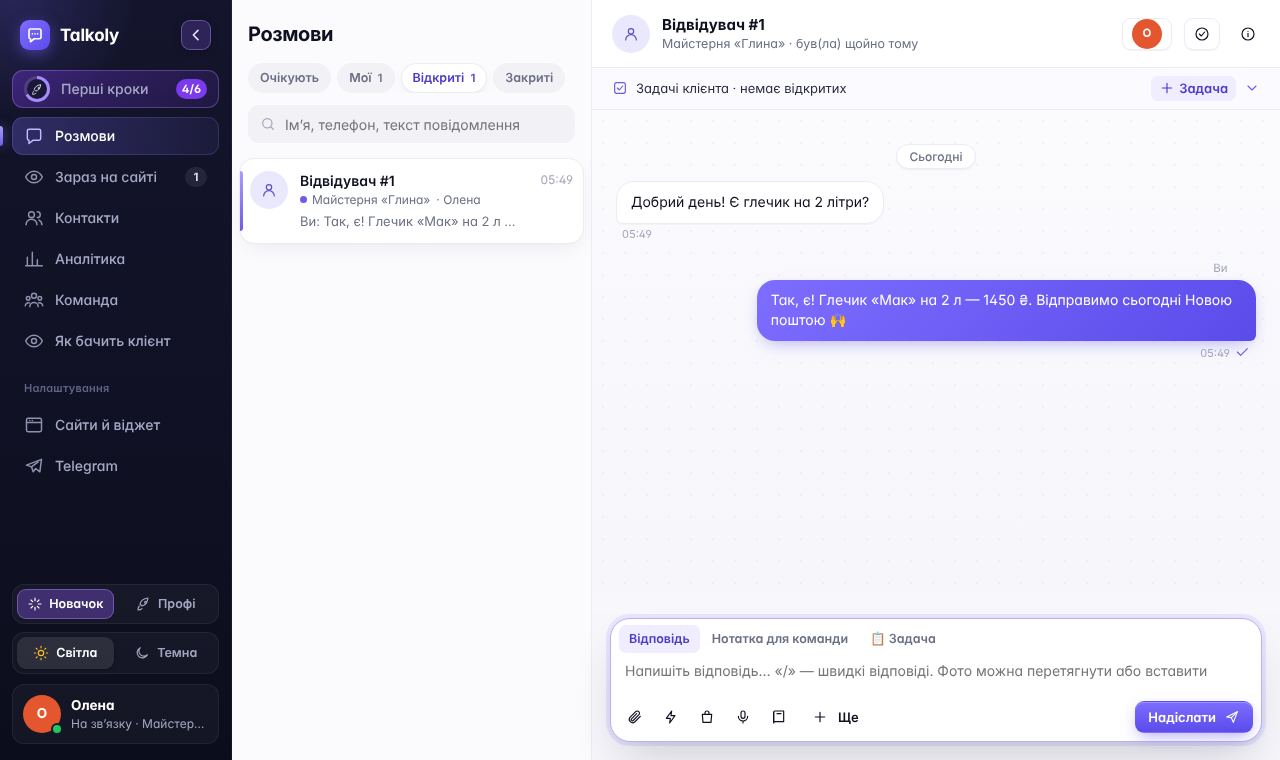
Reply from the dashboard
The message shows up right away in the “Conversations” section. Click it, type your reply and press Enter — the customer sees it on your website.
- An orange timer shows how long the customer has been waiting.
- Type “/” to insert a ready-made reply, for example about delivery.
Connect Telegram
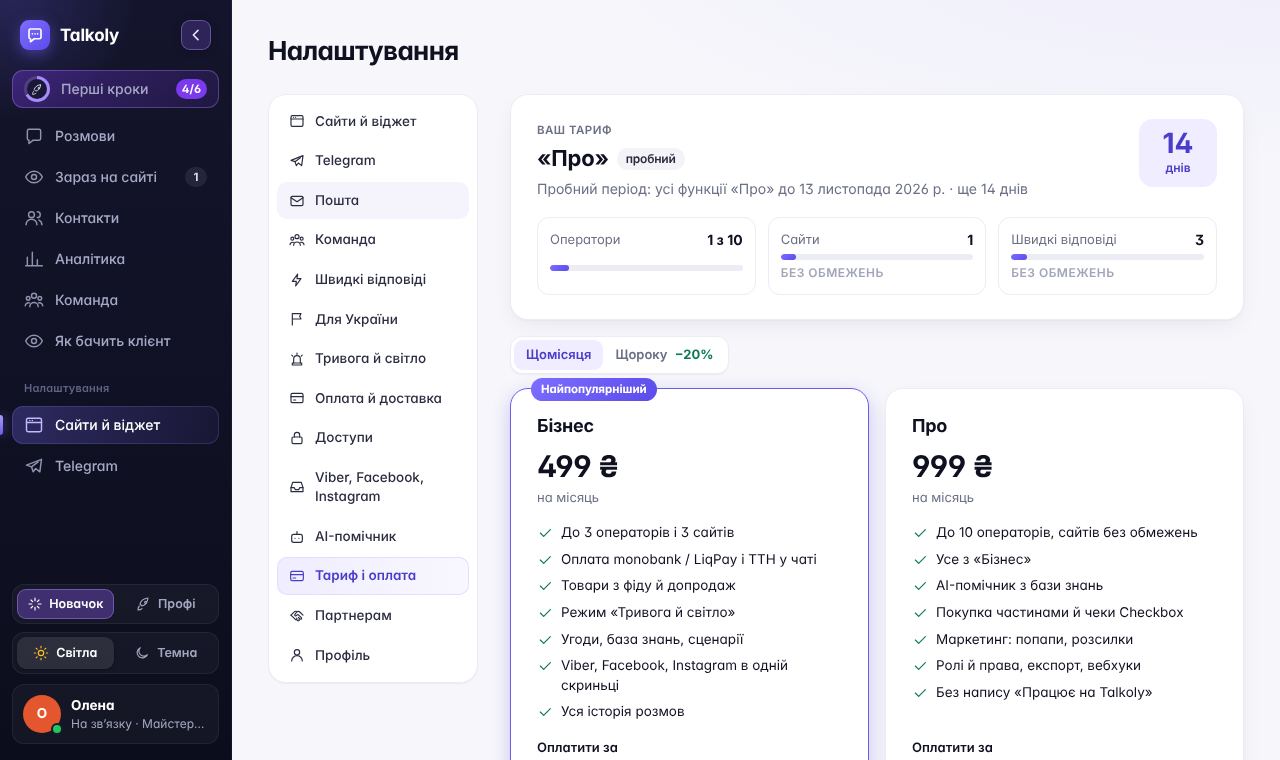
So you don’t have to sit at a computer: “Settings → Telegram”. Messages from your website will arrive in Telegram, and you answer with a reply (swipe the message left) — your answer goes to the customer on the website.
You can also install the dashboard on your phone like an app and get notifications. More about Telegram.
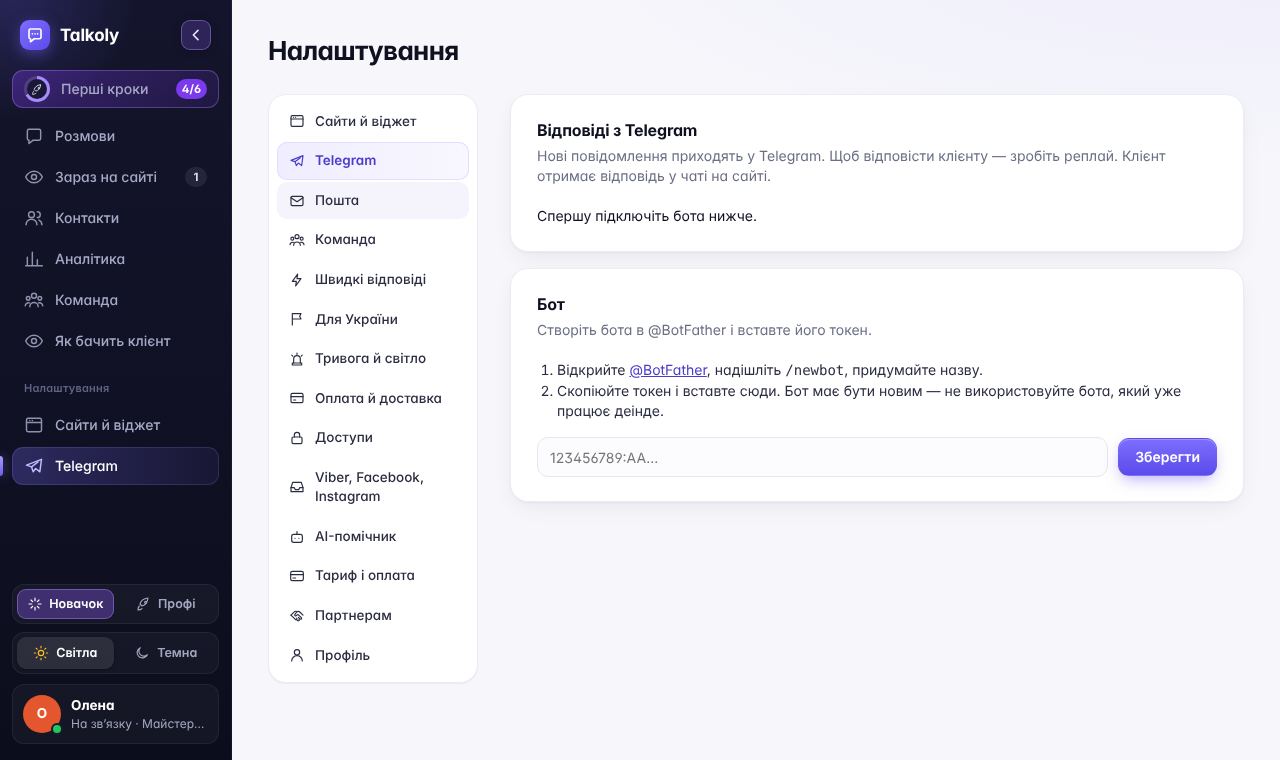
See who’s on your site right now
The “On site now” section shows people who are browsing your website right now: which page, and where they came from. See someone looking at a product for a long time? Message them first — “Need help with the size?”.
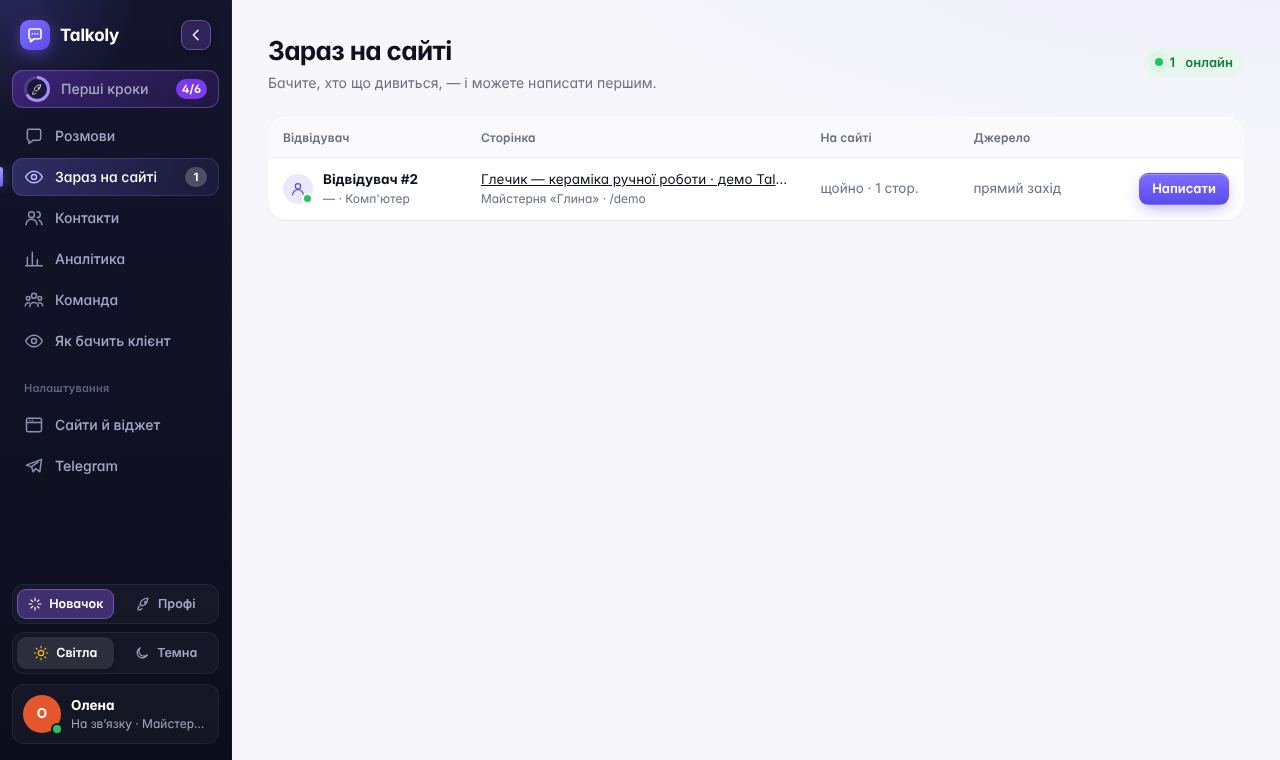
Turn on “Air raids and power cuts”
“Settings → Air raids and power cuts”. Choose your city — and during an air raid alert, the chat will tell customers on its own that you’re in a shelter and ask them to leave a phone number. When the power is out, you turn the mode on with one click.
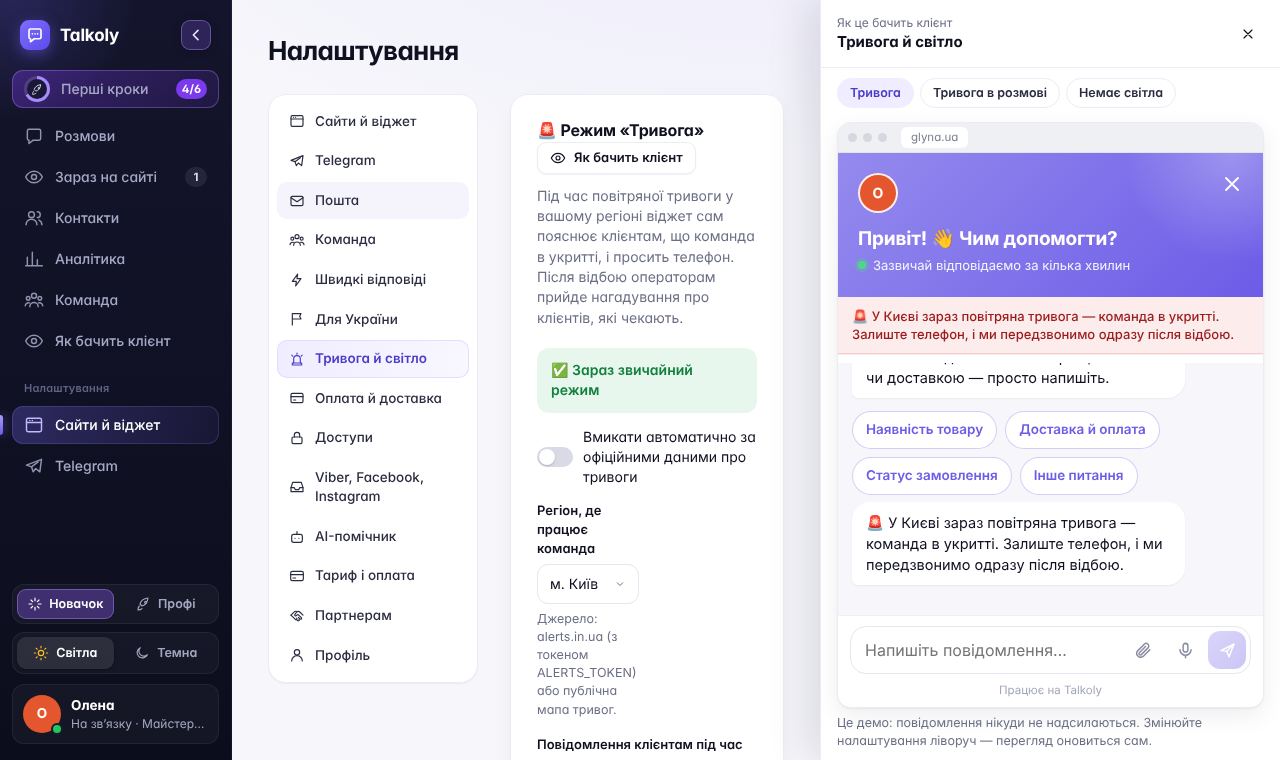
Choose a plan when it suits you
“Settings → Plan and billing”. Here you can see how many trial days are left. You can pay by card or with an invoice for a sole proprietor (FOP). Don’t want to pay? Your account will keep working on the free Start plan.
Frequently asked questions
What should I do if the chat didn’t appear on my website?
Check that the code is pasted before </body> and the changes are saved. Clear your site’s cache (if you use a caching plugin). Click “Check installation” in your dashboard — we’ll tell you what’s wrong. Or message us in the chat.
Can I reply from my phone?
Yes. The easiest way is to reply in Telegram. Or open the dashboard in your phone’s browser and add it to your home screen — it will work like an app with notifications.
How do I add a colleague?
“Settings → Team” → “Add”. Enter your colleague’s email and a temporary password. You decide what they can see: customer phone numbers, analytics, deals.
What are the “Beginner” and “Pro” modes?
In “Beginner” mode, the menu shows only the essentials: conversations, visitors, contacts, settings. “Pro” shows everything: deals, tasks, scenarios, mailings. The switch is at the bottom of the left menu.
Where can I find more tips?
On our blog: reply scripts, working during air raids, how to sell in chat. And if something isn’t clear, message us in the chat on this website — we’ll answer in plain language.